How do I deposit using Venmo
Venmo now supports buying and holding cryptocurrencies directly in the app. Through this feature, users can easily purchase PayPal USD (PYUSD), a stablecoin that always equals one U.S. dollar. With Venmo's built-in crypto support, you can conveniently buy PYUSD and use it on our platform.
Please follow the steps below:
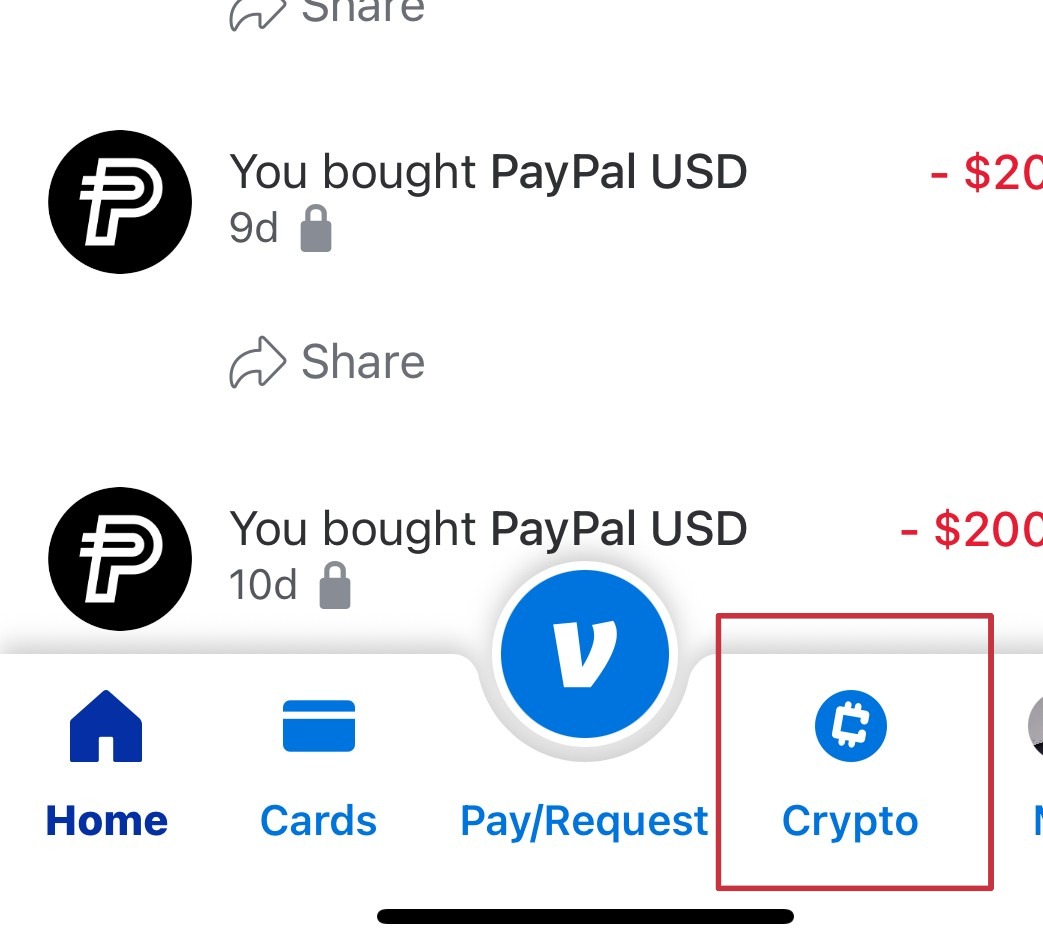
1. Open the Venmo app and tap the Crypto tab in the bottom navigation bar.
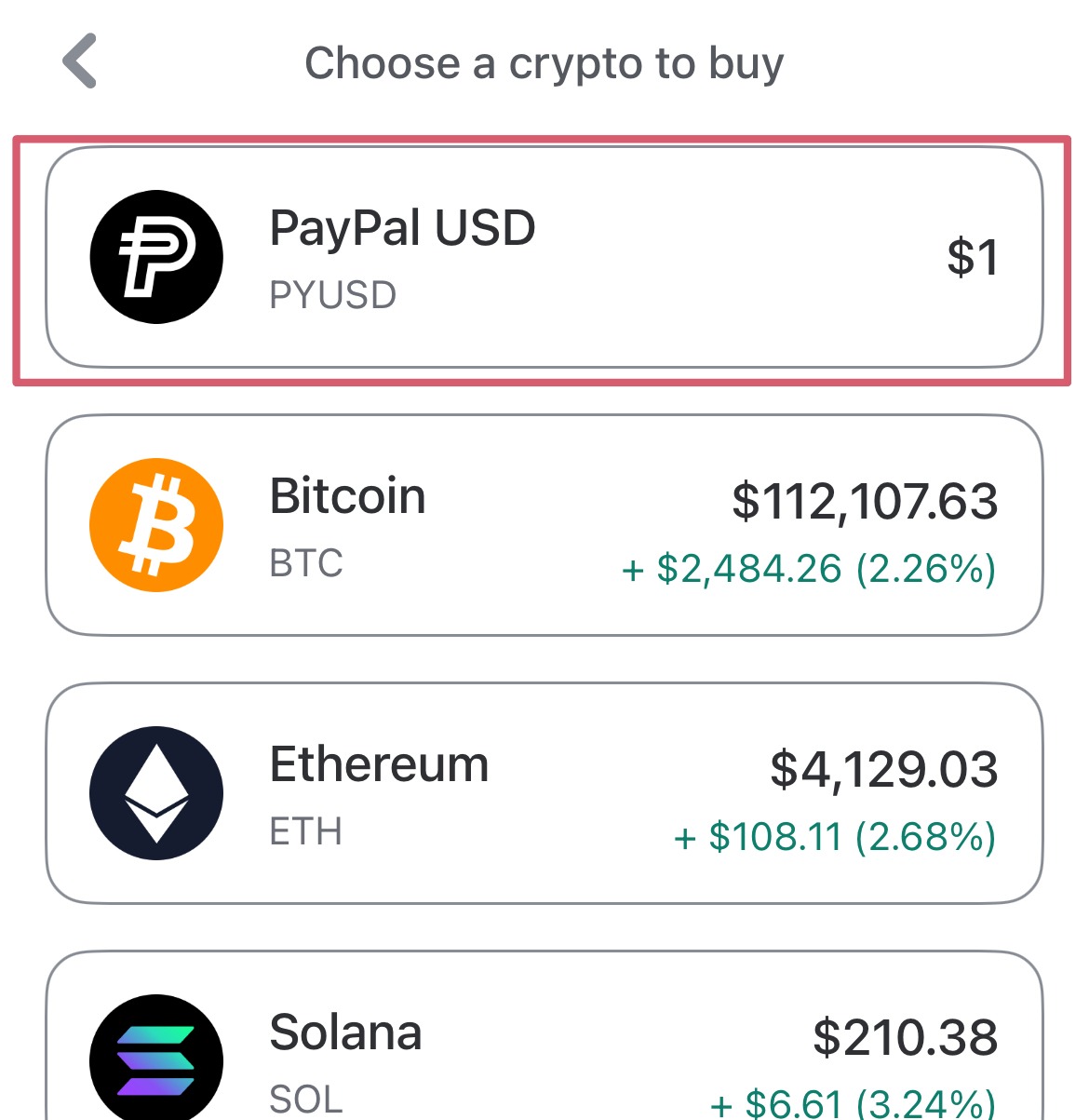
2. Select the Buy option, then select PYUSD as your cryptocurrency.
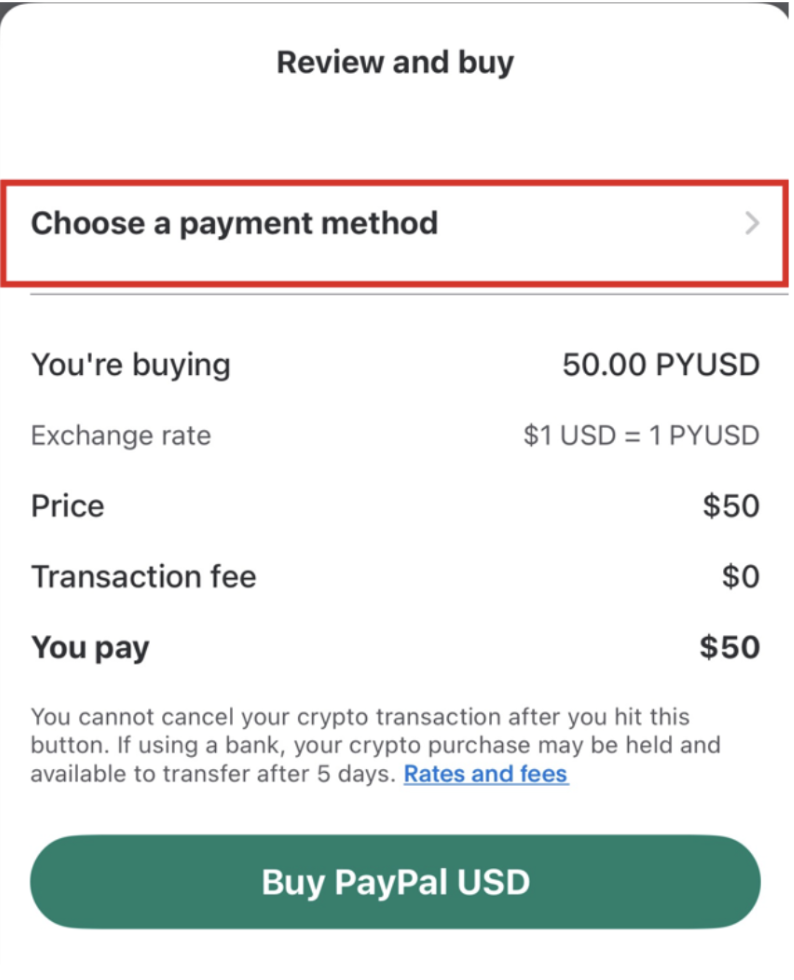
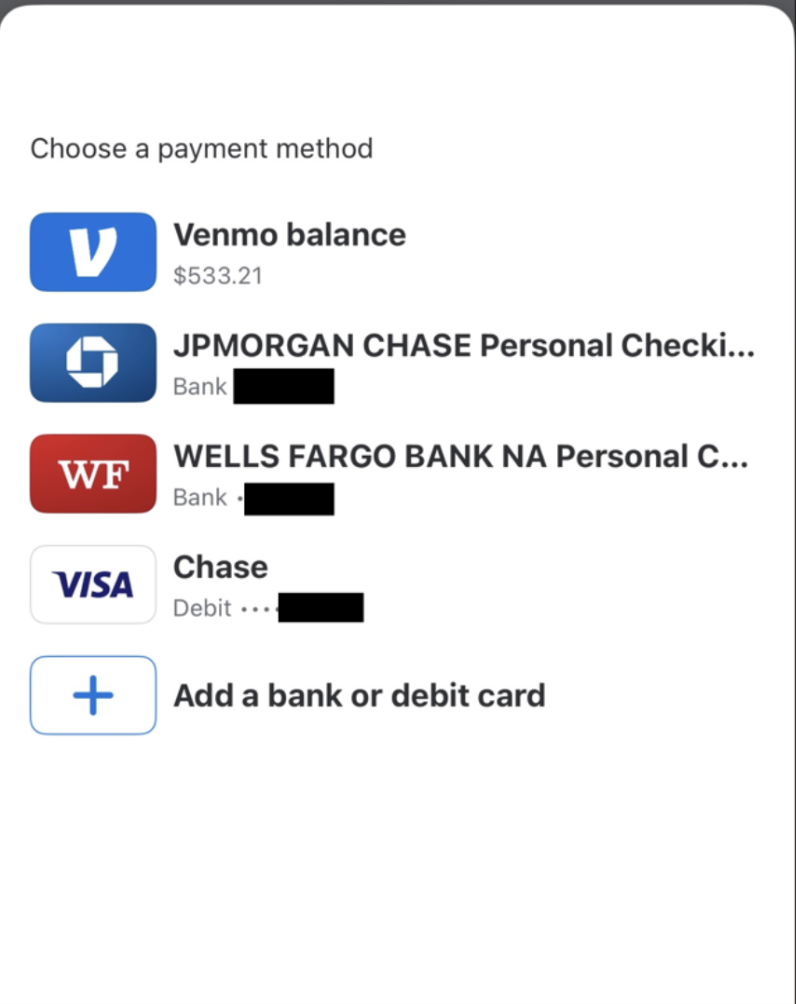
3. Enter the USD amount you'd like to spend, then tap Review. You can select different payment options directly on the Review screen:
Tip 1: We recommend adding about $2 extra to cover the network fee charged by Venmo when you transfer PYUSD to our platform.
Tip 2: You can purchase PYUSD using several different methods. We recommend using a debit card, as it typically allows your PYUSD to be available for use almost immediately after purchase.
Tip 3: Some financial institutions may flag crypto-related transactions and decline the debit card purchase. If this happens, we recommend first using your debit card to add USD to your Venmo balance. Then, purchase PYUSD directly from your Venmo balance instead of using the card.
Tip 4: You can also purchase PYUSD directly using your bank account (e.g., checking account). However, because the funds are transferred directly from your bank, the transaction is typically subject to additional processing time — often around 5 business days before the PYUSD becomes fully available for use.
4. Confirm the transaction details—including how much PYUSD you'll receive (it's always 1 PYUSD = 1 USD), plus any applicable fees.
5. Tap Buy to complete your purchase. Your purchased PYUSD should be added to your crypto balance momentarily.
Transferring your PYUSD to PointsBazaar:
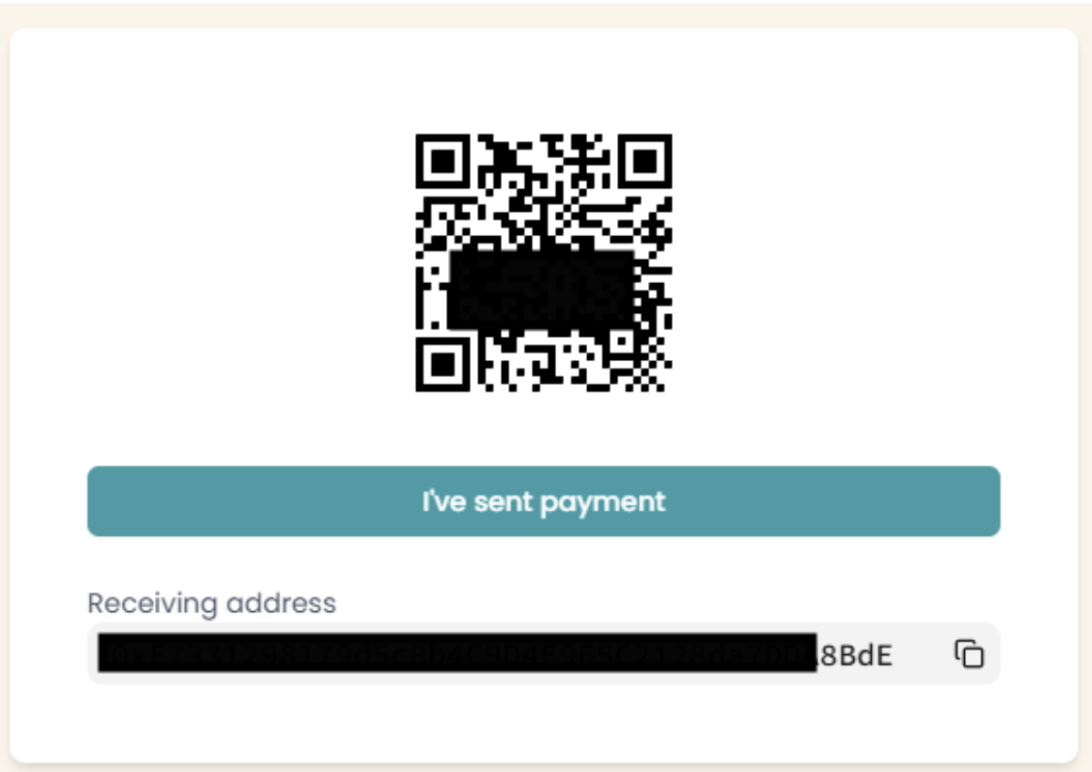
1. Navigate to your PointsBazaar wallet by selecting "Wallet" from the dropdown menu on the top right-hand corner on your PointsBazaar screen. Click Deposit. You should see your wallet address listed as well as a QR code that corresponds to your wallet address (example below).
2. In your Venmo app, navigate back to the Crypto tab. Select Send.
3. Select the PayPal USD (PYUSD) you just purchased.
4. If you used a desktop earlier, you can now scan the QR code on PointsBazaar with your phone. You can do so by selecting Scan a crypto address QR code on Venmo. If you've been using mobile all along, paste the Receiving Address (screenshot above) you copied into the top address bar.
5. Enter the amount you purchased (excluding the network fee).
6. Review the transfer details and tap Send.
7. Return to the PointsBazaar wallet interface and click “I’ve sent payment” (shown in the screenshot below). This action triggers a wallet sync, which detects the PYUSD you sent from Venmo, automatically converts it into USDC for use on the platform, and deposits it into your PointsBazaar wallet.
Note: For larger transfers, processing time may take longer—usually around 20–30 minutes. Please be patient while the transaction is confirmed.